
Two common customizations for a Moodle site: replacing the favicon and removing the Moodle branding from the footer.
Updating the favicon
Step 1: Create your favicon
Use Photopea (free, browser-based) or any image editor to create a 32×32 or 64×64 pixel .ico file.
Step 2: Locate the favicon directory on the server
On Bitnami Moodle, navigate to:
1 | /opt/bitnami/apps/moodle/htdocs/theme/boost/pix |
Step 3: Back up the existing favicon
Rename the current file before replacing it:
1 | mv favicon.ico favicon.ico.bak |
Step 4: Upload your new favicon.ico
Copy your new file to the same directory.
Step 5: Clear the cache
Do a hard refresh in the browser (Cmd + Shift + R on Mac, Ctrl + Shift + R on Windows).
If it still doesn’t update, try:
- Go to Site Administration → Appearance → Themes → Theme settings
- Enable Theme designer mode and save
- Refresh the browser
- Disable Theme designer mode and save again
Removing the Moodle logo from the Boost footer
Step 1: Locate the footer template
On Bitnami Moodle:
1 | /opt/bitnami/apps/moodle/htdocs/theme/boost/templates/footer.mustache |
Step 2: Edit footer.mustache
Open the file and remove the <img> tag or block that references the Moodle logo.
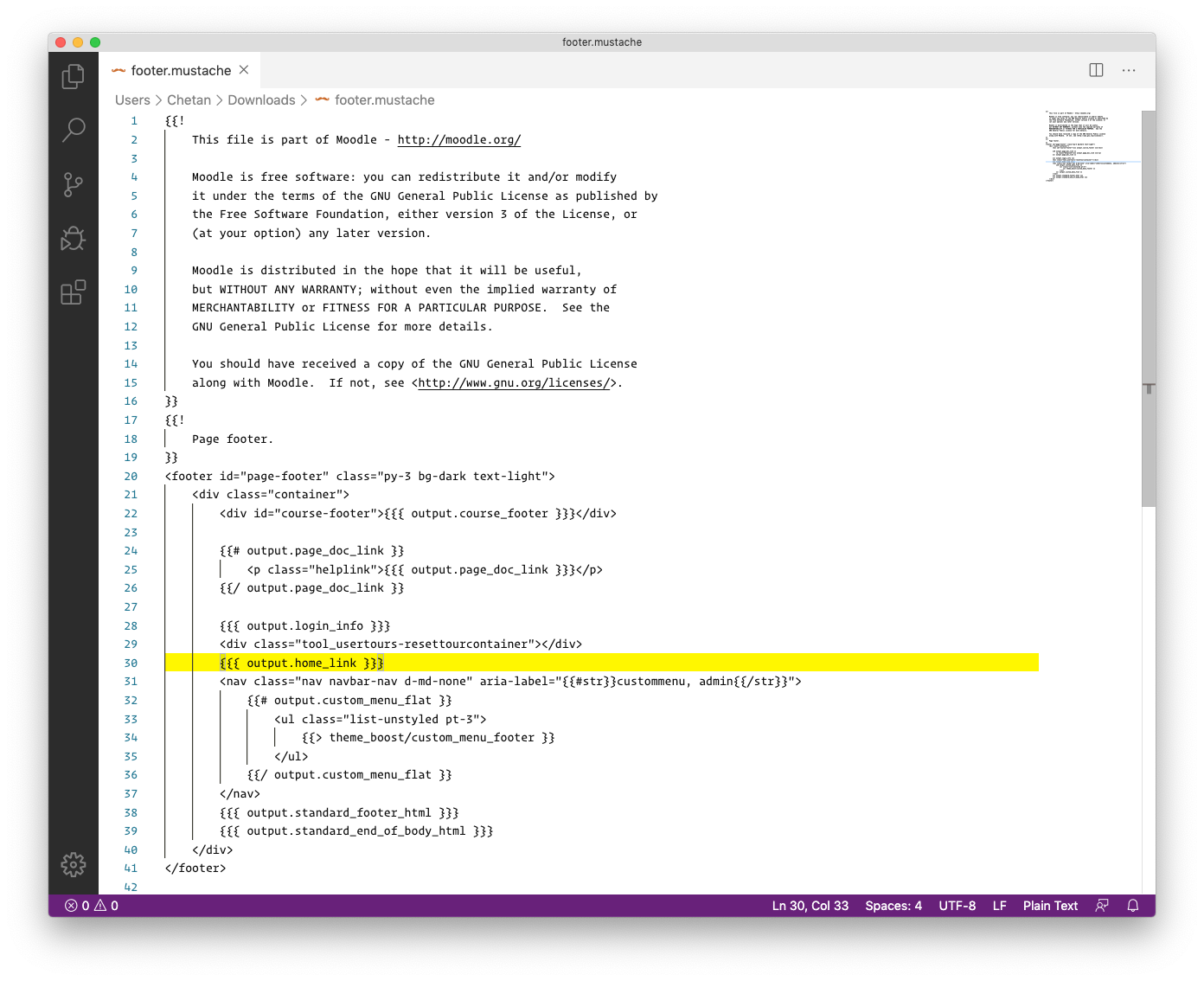
Step 3: Upload the modified file back to the server
The Moodle logo should no longer appear in the footer after the change.
Note: These steps apply to the Boost theme. Other themes will have different template paths.